
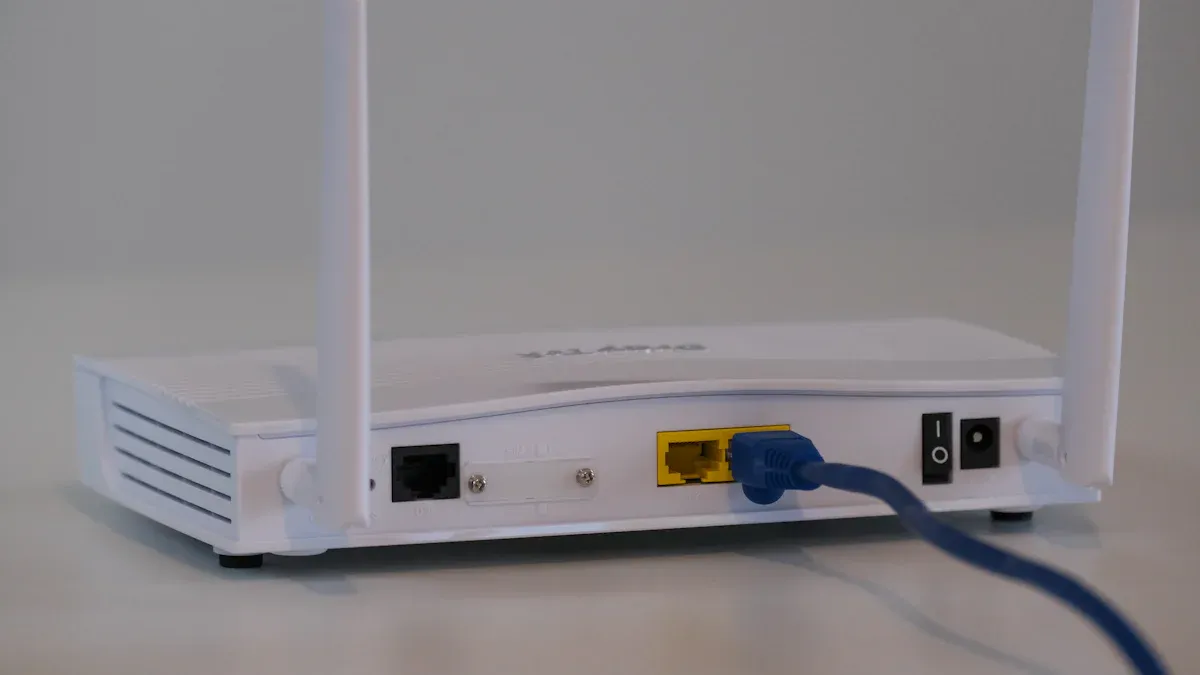
You can remotely upgrade firmware on your digital price tags using an ESL Gateway AP and management software. When you use Electronic Shelf Labels, you streamline updates across every ESL Price Tag in your store. Esl Retail stores like Best Buy have seen up to an 80% reduction in time spent updating tags compared to manual methods. This remote process frees your team to focus on customer service rather than repetitive digital maintenance.
How to Remotely Upgrade Firmware on Digital Price Tags
Quick Overview of the Wireless Upgrade Process
You can remotely upgrade firmware on your digital price tags using a secure wireless connection and management software. The process starts when you connect your electronic shelf price tags to a wireless gateway or access point. Most modern systems use Bluetooth Low Energy (BLE 5.0) because it offers strong security, high communication rates, and low power consumption. BLE 5.0 also supports over-the-air firmware upgrades, which means you do not need to physically handle each tag.
To begin, you upload the new firmware file to your management platform. The system then distributes the update to all connected tags. You can monitor the progress in real time and confirm that each digital device receives the correct update. This method ensures a faster update speed and reduces the risk of errors. You do not need to interrupt store operations or remove tags from shelves.
Tip: Always verify that your wireless network is stable before starting the upgrade. A reliable connection prevents interruptions and ensures every digital price tag receives the update.
Benefits of Remote Firmware Upgrades for Electronic Shelf Price Tags
Remote updating of electronic shelf price tags brings many advantages to your retail operations. You gain the ability to update prices instantly across all tags, which supports dynamic pricing strategies and automated price management. This flexibility helps you respond quickly to market changes and promotions.
Here are some key benefits:
- Real-time price updates improve accuracy and consistency.
- You reduce labor costs by eliminating manual tag changes.
- The system integrates with inventory management for up-to-date stock information.
- You support sustainability by reducing paper waste.
- Enhanced security prevents unauthorized changes to digital price tags.
The following table summarizes the main advantages:
| Advantage | Explanation |
|---|---|
| Real-Time Pricing Updates | Instant price changes across stores without manual tag replacement. |
| Remote Management | Ability to update ESLs remotely, ensuring consistency and reducing on-site labor. |
| Operational Efficiency | Reduces labor and time needed for manual price changes. |
| Dynamic Pricing | Enables pricing strategies based on demand, time, or inventory. |
| Reduced Paper Waste | Eliminates paper tags, supporting environmental sustainability. |
You can see how remote firmware upgrades transform your digital price tags into a powerful tool for faster update speed and improved operational efficiency. By adopting these wireless solutions, you keep your store modern and competitive.
Prerequisites for Wireless Firmware Upgrades
Before you start upgrading your digital price tags wirelessly, you need to gather the right devices, software, and network resources. This preparation ensures a smooth and secure upgrade process for your electronic shelf price tags.
Devices and Hardware Needed for Digital Price Tags
Electronic Shelf Price Tags
You need electronic shelf labels that support wireless communication. These tags display pricing and product information. Make sure your tags are compatible with remote firmware upgrades. Most modern digital price tag systems use BLE or similar wireless protocols for efficient updates.
Wireless Gateway or Access Point
A wireless gateway or access point connects your tags to your network. This device acts as a bridge between your management software and the electronic shelf price tags. Place the gateway in a central location to ensure strong coverage throughout your store.
Computer or Mobile Device
You will use a computer or mobile device to run the management software. This device lets you upload firmware files, monitor progress, and control the upgrade process. Choose a device with a reliable connection to your wireless network.
Software and Files Required for Remotely Upgrading Firmware
Firmware File for Digital Price Tags
Obtain the latest firmware file from your vendor. This file contains the updates and improvements for your tags. Always verify the file version and integrity before starting the upgrade.
Management Software or Cloud Platform
You need management software or a cloud platform to coordinate the upgrade. Leading solutions offer features such as batch firmware upgrades, device discovery, and automated scheduling. The following table highlights common features:
| Feature | Description |
|---|---|
| Firmware Upgrade | Upgrade firmware on multiple remote devices simultaneously over a local network. |
| Configuration Upload | Upload configuration files to multiple remote devices at once. |
| Device Discovery | Scan network devices by MAC address to identify hardware. |
| User Interface | Provide operation and log views to control devices and record actions. |
Many platforms also allow you to:
- Automatically load firmware and configuration when devices connect.
- Schedule and automate firmware update tasks.
- Monitor device health and trigger alarms.
- Integrate with third-party systems using web APIs.
You can use software like ControlFLASH Plus or FactoryTalk Updater. These tools let you manage and deploy firmware across multiple devices, view version history, and receive update alerts. They simplify the process and support large-scale upgrades for digital price tag systems.
Network and Power Requirements for Electronic Shelf Price Tags
A stable wireless network is essential for successful upgrades. Ensure your access points provide strong coverage and minimal interference. Reliable power sources keep your tags and gateways online during the process. If your store uses battery-powered tags, check battery levels before starting. Consistent connectivity and power prevent interruptions and protect your data.
Tip: Test your network speed and signal strength in advance. This step helps you avoid delays and ensures every digital device receives the update without issues.
Preparing Your Digital Price Tags for a Remote Firmware Upgrade
Backing Up Device Settings and Data
Before you start any remote firmware upgrade, you need to protect your current device settings and data. This step ensures you can restore your electronic shelf price tags if something goes wrong during the update. Follow these best practices to back up your devices:
- Back up device configuration files before upgrading. Use your management software’s graphical interface or command-line tools to save these files to a secure location, such as a TFTP server or USB drive.
- Check that the backup completed successfully by verifying the saved configuration file on your chosen backup medium.
- Download the current firmware version for your digital price tags. This gives you a fallback option if you need to roll back after an unsuccessful upgrade.
- Review the release notes for the new firmware and confirm compatibility with your device model.
- Schedule a maintenance window for the upgrade. Make sure you have console access to monitor the process and troubleshoot if any tags become unresponsive.
- Confirm all backup and preparation steps are complete before you begin the remote firmware upgrade.
Tip: Always keep a backup of your settings. If you need to reset a device after the upgrade, you can restore your configuration quickly and minimize downtime.
Downloading and Verifying the Correct Firmware
You must download the correct firmware for your digital price tags from a trusted vendor. Verifying the authenticity and integrity of the firmware file is critical for device security. Developers use code signing certificates from trusted Certificate Authorities to digitally sign firmware files. This digital signature proves the firmware is authentic and has not been tampered with.
- Use code signing tools that support your firmware file format, such as .bin or .hex.
- Microsoft SignTool is a popular utility for creating and verifying digital signatures on firmware files.
- The digital signature includes a hash of the file and a certificate from a trusted authority. Your system uses this to confirm the firmware has not changed since it was signed.
- Timestamping features in signing tools provide proof of when the firmware was signed, helping you detect any tampering after signing.
- Hardware Security Modules (HSMs) protect private keys during the signing process, making unauthorized code changes much harder.
Before you install the firmware, check the digital signature and certificate details. Confirm the certificate matches the official organization and that no warnings appear during installation. Properly signed firmware reduces the risk of malware or tampering.
Ensuring Compatibility with Electronic Shelf Price Tags
You need to ensure the firmware you plan to install is compatible with your electronic shelf price tags. Review the release notes and documentation provided by your vendor. Check the model number and hardware version of your tags against the firmware requirements. Incompatible firmware can cause devices to malfunction or become unresponsive.
If you manage multiple models of digital price tags, organize your upgrade process by device type. This approach helps you avoid mistakes and ensures each tag receives the correct update. Always test the new firmware on a small group of devices before rolling it out to your entire network.
Note: Compatibility checks help you prevent costly errors and keep your digital devices running smoothly.
Setting Up a Stable Wireless Network
A stable wireless network forms the backbone of any successful remote upgrade for digital price tags. You need to ensure that every tag receives updates reliably and without interruption. To achieve this, you should follow a systematic approach that addresses both coverage and reliability.
-
Conduct a Site Survey
Start by walking through your store with a wireless analyzer. Test signal strength in every area, including corners and behind shelving units. This step helps you identify dead zones where tags might lose connection. -
Strategically Place Network Equipment
Position gateways, access points, and repeaters to cover all weak spots. Overlapping coverage zones create redundancy, so if one device fails, another can maintain the connection. This approach reduces the risk of tags dropping off the network during critical updates. -
Implement Mesh Networking for Large Stores
In bigger or more complex retail spaces, mesh networking offers a self-healing and scalable solution. Mesh networks allow each device to communicate with multiple others, ensuring that even if one path fails, data can still reach every digital tag. -
Minimize Interference
Avoid placing tags near large metal objects or electronic devices that emit strong signals. These items can disrupt wireless communication and cause intermittent connectivity issues. -
Use Backup Power Supplies
Equip gateways and network switches with backup power sources. Uninterrupted power keeps your network running during outages, so you do not lose connection with your digital devices mid-upgrade. -
Schedule Regular Maintenance
Perform routine checks on your network hardware. Update firmware and software, inspect for hardware faults, and run performance tests. Proactive maintenance prevents unexpected failures during upgrades. -
Optimize Network Performance
Use network monitoring tools to track performance. Techniques like load balancing, network segmentation, and bandwidth management help maintain stable connections, especially when upgrading many tags at once. -
Choose User-Friendly Systems with Support
Select management platforms that offer intuitive interfaces. Vendor support agreements can simplify troubleshooting and ensure you resolve issues quickly.
Tip: Reliable wireless networks not only support smooth upgrades but also enable real-time updates and accurate pricing across your store.
By following these steps, you create a robust wireless environment that supports your digital price tags. You minimize downtime, reduce errors, and ensure every digital device receives timely updates.
Step-by-Step Guide to Remotely Upgrade Firmware
Connecting Digital Price Tags to the Wireless Network
You must connect your digital price tags to a secure wireless network before you can begin any firmware upgrade. This process ensures that each tag communicates reliably with your management platform. Follow these steps to establish a stable connection:
- Open the management software and navigate to the NETWORK tab. Select the WIRELESS option to choose your store’s Wi-Fi network.
- Move to the SERVICE tab and enter the service URL provided by your vendor. For example, you might use
tcp://cloud.minewtag.com:2883orssl://cloud.minewtag.com:9883. - Click APPLY to save your configuration. Wait for the gateway indicator light to confirm a successful setup.
- Access the Platform (POS) settings and locate the Digital Price Tags section.
- In the Digital Price Tags settings, select your store location. Add a new gateway by entering a unique name and the gateway’s MAC address.
- Save the gateway and check that its status shows as ONLINE.
- Connect each digital price tag by entering its MAC address into the inventory section. Place the tags near the gateway for a faster connection.
- For convenience, use the mobile scan feature to scan the QR code on each tag. This automatically enters the MAC address and speeds up the process.
Tip: Always verify that each tag appears as connected in your management software before proceeding. This step prevents connection issues during the upgrade.
Uploading the Firmware File via Management Software
Once your electronic shelf price tags are online, you can upload the new firmware file. This step prepares your system for the remote upgrade. Start by logging into your management platform from your computer or mobile device. Locate the firmware upgrade section, which is usually found under device management or maintenance.
Select the correct firmware file that matches your digital price tags’ model and hardware version. Double-check the file name and version number to avoid compatibility issues. Most platforms allow you to drag and drop the file or use a file picker to upload it. The software will then verify the file’s integrity and digital signature. If the verification passes, the system will queue the firmware for deployment.
Note: Uploading the wrong firmware can cause device errors. Always confirm the file details before starting the upload.
Initiating the Remote Firmware Upgrade Process
With the firmware file uploaded, you are ready to remotely upgrade firmware on your tags. Use the management software to select the group of tags you want to update. You can choose all tags at once or target specific devices based on their location or model.
Start the upgrade process by clicking the appropriate command in your software. The system will send the firmware to each tag over the wireless network. You can monitor the progress in real time, watching as each tag receives and installs the update. The software will display status indicators, such as “in progress,” “completed,” or “failed.” If any tags fail to update, you can retry the process or troubleshoot as needed.
🛡️ Alert: Do not power off your gateway or disconnect tags during the upgrade. Interruptions can cause incomplete installations and may require manual recovery.
After the upgrade completes, the tags will reboot automatically. You should see the new firmware version displayed in your management dashboard. This confirms a successful update and ensures your digital devices are running the latest features and security enhancements.
Monitoring Progress and Status of Electronic Shelf Price Tags
You need to monitor the progress of your electronic shelf price tags during a remote firmware upgrade. This step helps you ensure that every tag receives the update and operates as expected. Most management platforms provide a dashboard that displays real-time status updates for each device. You can view which tags are currently updating, which have completed, and if any have encountered errors.
A typical progress display shows a percentage or a progress bar for each tag. You might also see a count of how many tags have finished the update. Some systems allow you to filter by location or device type, making it easier to track large deployments. If a tag fails to update, the dashboard usually highlights it so you can take action right away.
🕒 Tip: The update process for digital tags may take 10 minutes or more. Plan your maintenance window accordingly to avoid disrupting store operations.
You should check for these key indicators while monitoring:
- The display on each tag shows progress counts during the update.
- The management software confirms when a tag has finished updating.
- Any errors or interruptions appear in the status column, allowing you to address them quickly.
By keeping a close eye on the progress, you reduce the risk of missed updates and ensure all electronic shelf price tags remain synchronized.
Completing the Upgrade and Rebooting Devices
After the update process finishes, you need to complete the upgrade and reboot your digital price tags. This final step ensures that each device runs the new firmware and operates correctly. The completion process follows a clear sequence:
- The display on each tag shows the message ‘Done’ when the update is complete.
- You remove the USB flash drive if you used one during the upgrade.
- Press a key on the tag to start the reboot process.
- The display briefly shows ‘Restarting,’ signaling that the device is rebooting.
- The startup screen appears, showing updated version numbers for Loader, OS, and Mainboard. This confirms the successful upgrade and reboot.
You should verify that each tag displays the correct version numbers after rebooting. This step confirms that the remotely upgrade firmware process succeeded. If any tag does not show the expected information, you can use your management software to troubleshoot or repeat the update.
✅ Note: Always confirm that all digital tags have rebooted and display the correct information before returning them to service. This practice ensures your electronic shelf price tags function reliably and reflect the latest changes.
Safety Tips for Remotely Upgrading Firmware on Digital Price Tags
Ensuring Stable Power and Network Connections
You need a reliable network and steady power supply to successfully update your digital price tags. Unstable wireless connections can prevent updates from reaching all tags. Wireless interference from other electronic devices or thick walls can weaken signals. Older infrastructure with outdated wiring or poor internet connectivity can make network issues worse. Power outages may stop the update process, but e-paper displays on electronic shelf price tags will still show the last price.
To avoid these problems, follow these steps:
- Place wireless gateways in central locations to reduce dead zones.
- Use network monitoring tools to check for weak spots or interference.
- Test your network before starting the update.
- Keep backup power sources ready for gateways and network switches.
🛡️ Tip: Regularly monitor your network and power systems. Quick action helps you prevent disruptions during critical updates.
Avoiding Common Mistakes During Wireless Upgrades
You can prevent many upgrade failures by avoiding common mistakes. Always double-check that you have selected the correct firmware for your tags. Uploading the wrong file can cause devices to malfunction. Make sure all devices appear as connected in your management software before you begin. Do not start the upgrade if your network is unstable or if you notice low battery levels on your tags.
Here is a checklist to help you avoid errors:
- Verify firmware compatibility with your digital devices.
- Confirm all tags are online and communicating with the gateway.
- Schedule upgrades during low-traffic hours to minimize impact.
- Never interrupt the process by powering off devices or disconnecting the network.
- Keep a backup of your current settings and firmware.
⚠️ Note: Rushing through the process increases the risk of mistakes. Take your time to review each step.
Protecting Data and Device Integrity
You must protect your data and device integrity during remote firmware upgrades. Start by using secure communication protocols like TLS to prevent eavesdropping or tampering. Authenticate and authorize every update with strong mechanisms such as Public Key Infrastructure (PKI). Always verify firmware authenticity with digital signatures and hash functions.
For stronger security, consider these best practices:
- Implement a hardware root of trust to secure the device from power-on.
- Use encryption key management, possibly with hardware security modules.
- Enable runtime integrity checks to detect unauthorized changes.
- Employ rollback protection to block installation of older, vulnerable firmware.
- Disable debug interfaces and unused ports to reduce attack surfaces.
- Set secure default configurations and validate all inputs.
- Monitor devices for suspicious activity and log security exceptions.
🔒 Tip: Secure boot mechanisms ensure only authorized firmware runs on your devices. Regular testing and validation help you find and fix vulnerabilities before they become threats.
Troubleshooting Remote Firmware Upgrades for Electronic Shelf Price Tags
Handling Failed or Interrupted Upgrades
When a firmware upgrade fails or gets interrupted, you can recover your electronic shelf price tags by following a few proven steps. Start by resetting the tag’s flash memory to its factory state. Open the tag case and short the specific pins, usually pin 1 and pin 3, as shown in your device’s documentation. This action unassociates the tag and lets you re-associate it with your system.
If a tag disappears from your management list but remains associated, use the web interface to undelete it. Go to “Settings,” select “Undelete,” and choose the tag you want to restore. Test the tag’s responsiveness with the “Beep” function. If the tag does not respond, try switching between old and new wireless settings to reestablish communication.
Always associate one tag at a time. Associating multiple tags to the same entry can cause erratic behavior. If you find multiple tags linked incorrectly, unassociate the problematic tag to make it flash, then re-associate it properly. For some sensor types, you may need to short detectors or use a magnet to wake the tag from shelf mode. Avoid enabling the “lock flash memory” option during association, as this prevents you from resetting the flash memory if needed.
⚡ Tip: Careful association and recovery steps help you avoid long-term issues with your tags.
Resolving Device Non-Responsiveness After Upgrade
If a digital price tag becomes unresponsive after a firmware upgrade, you can use a systematic approach to restore functionality:
- Restart the device to clear temporary glitches.
- Check the power supply and network connection to ensure stability.
- Clear the update cache to remove any corrupted files.
- Temporarily disable antivirus or firewall software that might block updates.
- Perform a hard reset if the device remains unresponsive, but remember this erases user data.
- Use recovery mode to reinstall or restore firmware if your device supports it.
- Roll back to a previous firmware version if possible.
- Contact manufacturer support if the problem persists.
You should also verify that the device’s “Since Committed” time is current. If the device has not committed data, firmware updates will not apply. Confirm that the firmware version is active in Device Manager. Inactive firmware versions cause the device to skip updates. Make sure all device records upload completely before you start the upgrade. If the device enters “trip” mode, wait for it to reset before proceeding. Adjust connection timeout and heartbeat intervals to speed up uploads if needed.
🛠️ Note: Save device logs before updating firmware. These logs help support teams diagnose persistent issues.
Fixing Firmware Compatibility Issues
Firmware compatibility problems can prevent successful upgrades or cause devices to malfunction. To address these issues, always check that the firmware matches your tag’s model and hardware version. Review the release notes and documentation from your vendor before starting the upgrade.
If you discover a compatibility issue after an upgrade, roll back to the previous firmware version if your system allows it. Restore factory defaults to clear any lingering conflicts. After resetting, reconfigure your device settings and test the tag’s basic functions. If the problem continues, consider hardware replacement as a last resort.
🚩 Alert: Never skip compatibility checks. Using the wrong firmware can lead to device failure and increased downtime.
Restoring Previous Firmware Versions
Sometimes, a firmware upgrade on your digital price tags does not go as planned. You might encounter device malfunctions, failed updates, or unexpected behavior. In these situations, restoring a previous firmware version becomes essential for maintaining store operations and device reliability.
You have two main options for firmware rollback: automated tools and manual recovery methods. Many enterprise hardware vendors, such as Dell and HP, offer automated rollback utilities. These tools, like Dell’s BIOS Recovery Tool or HP’s Smart Update Technology, help you revert devices to a known good state after a failed update. While digital price tag systems may not always provide such advanced utilities, you can still apply similar principles to your upgrade process.
Here’s a practical approach to restoring previous firmware versions:
- Use your manufacturer’s firmware update utility if available. This tool often provides a straightforward way to select and install an earlier firmware version.
- If automated rollback is not supported, perform a manual installation. Download the previous firmware file from your vendor’s official site. Use your management software to upload and deploy the file to affected tags.
- Avoid interrupting the rollback process. Power loss or network disconnection during installation can brick your device, making recovery much harder.
- After the rollback, test each digital price tag to confirm it functions as expected. Check display accuracy, network connectivity, and response to management commands.
- If the rollback resets device settings, restore your configuration from backup files. If no backup exists, manually reconfigure each tag using your management platform.
- When you encounter persistent issues, restart the device or reinstall the firmware. If problems continue, contact your manufacturer’s support team for specialized guidance.
⚠️ Note: Some digital price tags include anti-rollback protections. These security features prevent downgrading to older firmware versions to reduce the risk of vulnerabilities. Always review your device documentation before attempting a rollback.
You should also plan your firmware management strategy to minimize disruption. Schedule rollbacks during off-peak hours to reduce downtime. Stage your rollouts by testing updates and rollbacks on a small group of tags before applying changes across your entire store. This approach helps you catch problems early and avoid widespread device failures.
Testing rollback functionality is just as important as testing upgrades. Develop clear processes for backup, recovery, and validation. By preparing for both successful and unsuccessful upgrades, you ensure your digital price tags remain reliable and secure.
Verifying a Successful Remote Firmware Upgrade
Checking Firmware Version on Digital Price Tags
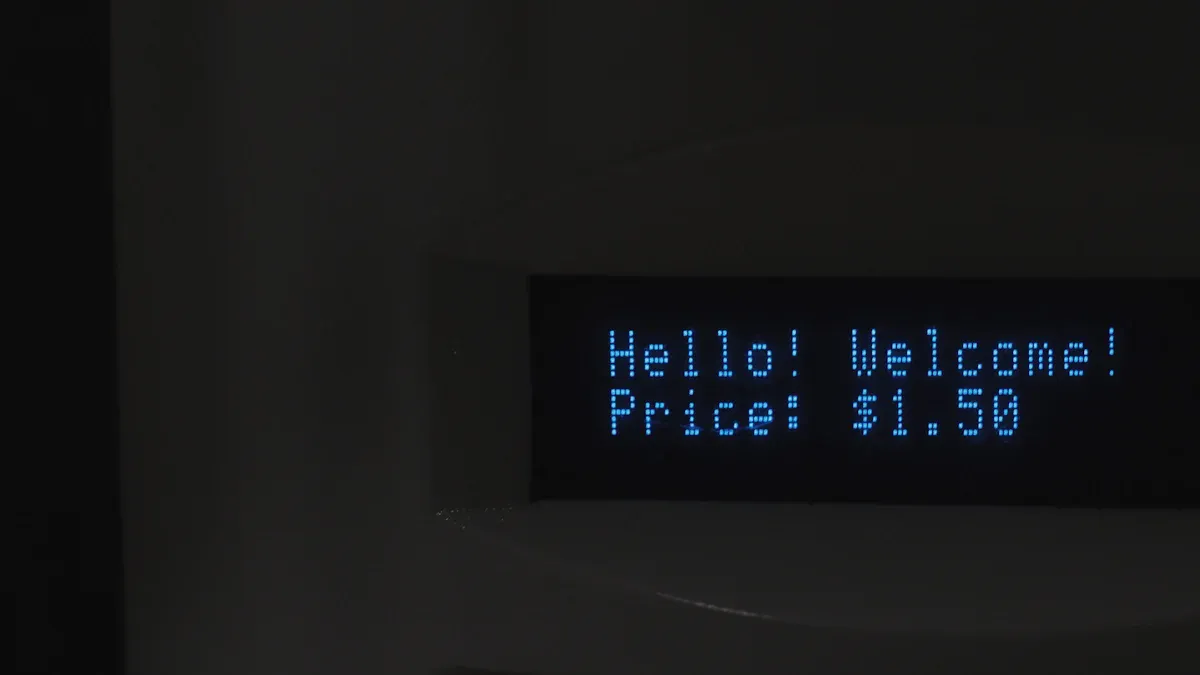
After you complete a remote firmware upgrade, you need to confirm that each device runs the correct version. Start by opening your management software. Locate the device list and select a few tags at random. Check the firmware version displayed for each one. Most platforms show this information in a dedicated column or device details page. If you see the expected version number, you know the upgrade succeeded.
You can also check the version directly on the tag’s display. Some models show the firmware version during startup or in a settings menu. If your system supports batch reporting, export a list of all tags and review the firmware column for consistency.
Tip: Always verify a sample from each store section. This practice helps you catch isolated upgrade failures early.
Testing Functionality of Electronic Shelf Price Tags
You must test the basic functions of your electronic shelf price tags after an upgrade. Begin by updating a product’s price in your management system. Watch the tag’s display to see if it reflects the new pricing within the expected time. If the update appears quickly and accurately, the tag works as intended.
Next, test other features such as battery status indicators, display clarity, and button responses. Use the management software to send a test command, like a “beep” or “refresh” signal. If the tag responds, you confirm that communication remains stable.
Here is a simple checklist for post-upgrade testing:
- Update a product price and check the tag’s display.
- Trigger a manual refresh from the software.
- Inspect the display for clarity and correct information.
- Test any physical buttons or touch features.
🛠️ Note: Consistent results across multiple tags indicate a successful upgrade.
Confirming Network Connectivity and Performance
Reliable network connectivity ensures your digital devices stay updated and responsive. Open your management dashboard and review the connection status for all tags. Look for any devices marked as “offline” or “disconnected.” If you find any, investigate the cause before returning the tags to service.
You should also monitor network performance during and after the upgrade. Use built-in analytics or third-party tools to check for delays, dropped packets, or slow response times. Strong connectivity supports real-time updates and accurate pricing across your store.
| Checkpoint | What to Look For | Action if Issue Found |
|---|---|---|
| Device Status | All tags show “online” | Reboot or reconfigure tag |
| Update Speed | Fast, consistent response | Check network or gateway |
| Error Logs | No recent errors reported | Review and resolve errors |
✅ Tip: Regular network checks help you maintain a reliable system for your electronic shelf price tags.
Wireless upgrades for digital price tags give you a manageable and efficient way to keep your store current. When you follow each step—backing up data, confirming compatibility, and using secure firmware—you protect your devices and data.
- You reduce labor costs and improve pricing accuracy.
- Real-time updates support dynamic pricing and better customer experiences.
- Wireless tags help you cut waste and align with sustainability goals.
Always back up your configurations and verify device compatibility before starting any upgrade. Careful preparation ensures a safe and successful process.
FAQ
How often should you upgrade the firmware on digital price tags?
You should check for firmware updates every quarter. Vendors release updates to fix bugs, improve security, and add features. Regular upgrades keep your system secure and efficient.
Can you upgrade all digital price tags at once?
Yes, you can upgrade multiple tags simultaneously using management software. Batch upgrades save time and ensure consistency across your store. Always monitor the process to catch any errors quickly.
What happens if a firmware upgrade fails?
If an upgrade fails, your tag may become unresponsive. You can recover it by resetting the device or restoring the previous firmware. Always keep backups and follow your vendor’s recovery instructions.
Do you need to remove tags from shelves during upgrades?
No, you do not need to remove tags. Wireless upgrades allow you to update firmware while tags remain in place. This process minimizes disruption to store operations.
How do you know if the upgrade succeeded?
You can verify success by checking the firmware version in your management software. You should also test tag functions, such as price updates and display clarity, to confirm proper operation.
Is it safe to upgrade firmware during store hours?
You can upgrade during store hours if your network is stable and you schedule upgrades for low-traffic periods. This approach reduces the risk of interruptions and ensures customer service remains smooth.
What should you do before starting a remote firmware upgrade?
Always back up device settings and data.
Verify firmware compatibility with your tags.
Test your wireless network for stability.
Review vendor documentation for specific upgrade steps.
Can you roll back to a previous firmware version if needed?
Some systems allow you to roll back to an earlier firmware version. Check your vendor’s documentation for rollback procedures and restrictions. Always keep a copy of the previous firmware before upgrading.